
How to get Windows 8.1 to recognise your Google Nexus 4, 5 or 7
You need to transfer photos and files to and from your Nexus but for some reason this process is not seamless with Windows 8. Here is the workaround:
When you try to find your Nexus in the device manager it maddeningly shows up as an unknown “ACER” device.
PLEASE NOTE: If you are a developer and have USB debugging mode turned on, turn it off first or it won’t transfer files at all.
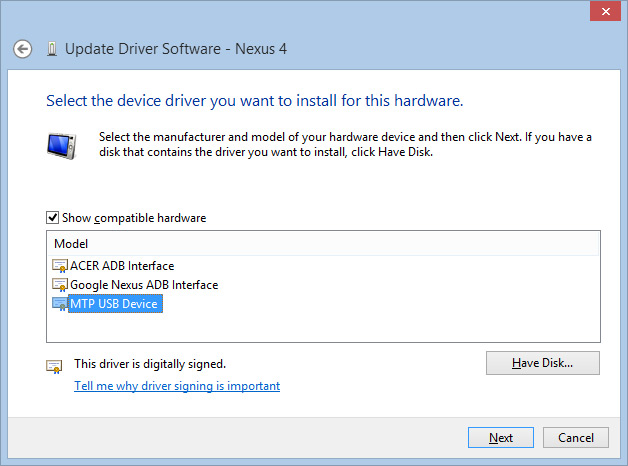
Keep your device plugged in. Then go to Control Panel > Device Manager. At the top of the tree you will see “ACER Device” and within that “ACER Composite ADB Interface”. Click on that, then select “Update Driver Software” then, “Browse my computer for driver software” then, “Let me pick from a list”, then select “MTP USB Device” (not Google Nexus ADB Interface!)
Immediately Windows will detect your device and it will ask you what you want to do. Also, your device manager tree will update correctly:
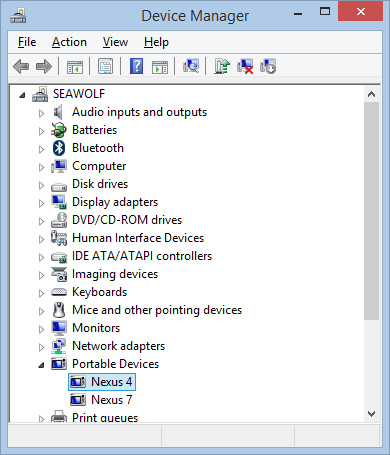
YAY!!!! Maddeningly annoying issue resolved. Remember to reboot to save your changes to the registry. That’s it!
kosta
thx dude:)
Monica
Thank you so much! I have been looking for a solution since I first got windows 8.
Graham Thompson
Many thanks – the first time a help forum has actually helped – I only wish I had located your web page 2 hours ago
Ankit
Thanks!!! This worked perfectly….
Just I had to disable and enable debugging mode twice to make it work!.. But works like a charm now.
Rob
This actually worked. What you have to do is make sure your Nexus 4 is turned on and plugged into PC USB (you hear the ding at that point). Then you follow the steps outlined above.
Simon
Thank you so much! Just in case anyone had a similar problem to mine, in which the system doesnt even recognise the device and continually tries to refresh if you click “Action” at the top of the device manager and choose Install Legacy Device, you can also choose choose the MTP USB Device driver under portal devices.
Again thanks for this tip!
} bird {
Thanks for the tip, Simon!
Joseph
OH WOW. THANKS SO MUCH. Man my phone wouldn’t connect properly for nearly an entire year! I was about to give up but I decided to give it one last try today, and it all worked out. 😀 Thanks for everything.
thomas barba
Thanks ! Helped a lot. So many worries for such a simple task.
Robert Staddon
Amazing! Worked perfectly. Thanks!